

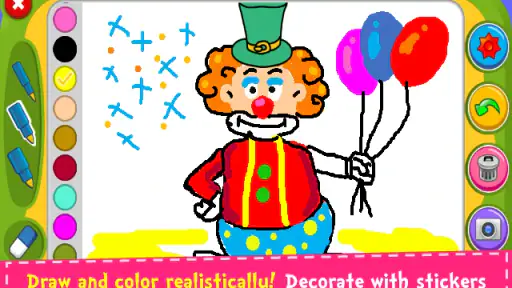
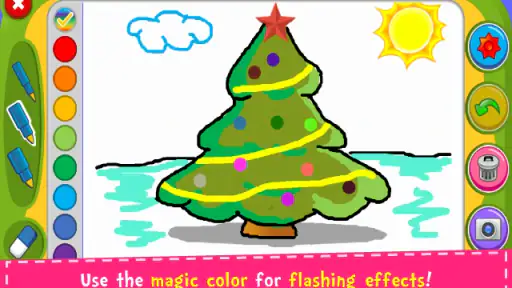
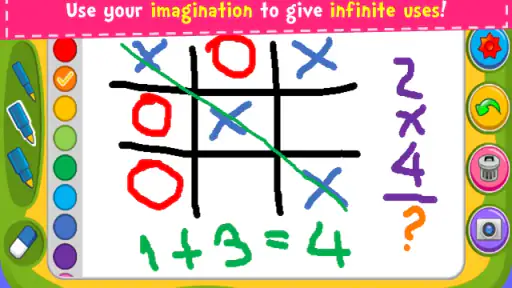
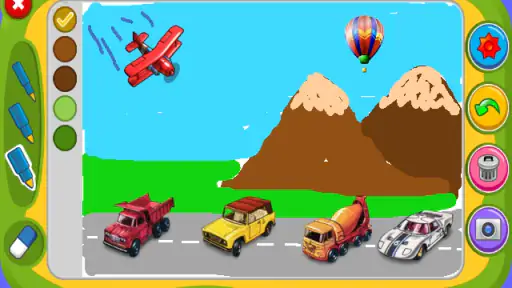
Magic Board - Doodle & Color is the kind of parenting app I would keep ready for a quiet afternoon, a restaurant wait, or a rainy day when a child wants to make something immediately. It turns the screen into a chalkboard-style drawing space, so the appeal is direct: choose a color, draw, erase, and start again without needing paper, crayons, or a large collection of craft supplies.
I found the experience easiest to appreciate when I stopped treating it like a full art program. It is not trying to replace a serious drawing tool. Its strength is the low-pressure moment between a child having an idea and being able to put that idea on screen. That simplicity also explains its limits, which matter if you are choosing it for an older child or for detailed artwork.
What the chalkboard approach feels like in everyday use
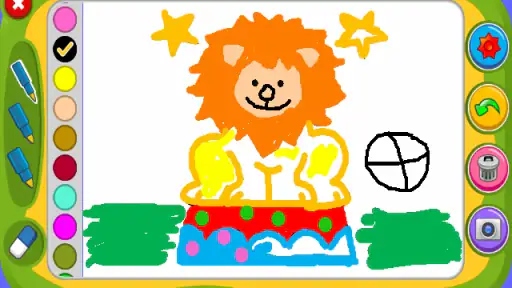
The basic attraction is the tactile illusion of a magic chalkboard. A child can make broad marks, experiment with colors, and clear the surface when the picture becomes too busy. I like that this removes the fear of wasting paper or making a permanent mistake. For younger children, that freedom often matters more than a long menu of brushes.
In my experience, the best first activity is not “draw a picture” but a small challenge: make a house using only three colors, draw a face with different expressions, or fill the board with patterns. These prompts give the app a purpose and help prevent the familiar problem of a child opening a creative app and losing interest after a few random strokes.
A realistic use case is a parent waiting for food with a child who is becoming restless. Instead of handing over a video, I would open the board and suggest drawing the meal before it arrives. The child can make a picture, erase it, and try another version. It is still screen time, but it is active and conversational rather than passive.
The app comes from Orange Studios Games and is offered free of charge. It is marked suitable for everyone, which fits the straightforward creative concept. The audience is mainly young children and the adults helping them get started, although older users may still enjoy it as a quick doodling surface.
Where people can get stuck before the drawing even begins
The first point of friction is usually expectation. Someone looking for layers, precision tools, text, elaborate brushes, or a large lesson library may think the app is incomplete. I would not install it for a child who specifically wants to create polished illustrations. The chalkboard idea works because it stays uncomplicated, and adding professional controls would change what makes it approachable.
Another common sticking point is hand control. A young child may press too hard, drag too quickly, or place a finger on the screen while trying to choose a color. That can produce marks that look accidental rather than creative. I found it more useful to demonstrate one action at a time: draw a line, change the color, erase part of it, and clear the board only after the child understands what each control does.
Small screens can make the interface feel crowded for little fingers, particularly when a child is trying to select a color and immediately return to the drawing area. A tablet is generally more comfortable for shared drawing because the child has more room to make broad movements. On a phone, I would expect shorter sessions and more help from an adult.
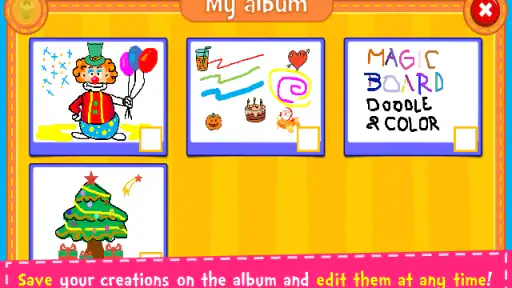
There is also a social friction that is easy to overlook. If a child creates a picture and then clears it by mistake, the disappointment can be greater than the drawing itself. I recommend agreeing on a simple rule before starting: pause and show the picture before using any clear or reset control. That habit turns a frustrating moment into a small lesson about saving or preserving work, even when the app is being used casually.
Simple setup checks that prevent avoidable problems
Before handing over the device, I would open the app myself and test the main drawing action. This takes less than a minute and answers the practical questions that matter: does the board respond properly to touch, can the child identify the colors, and is the erase or reset action easy to trigger accidentally? A quick adult check is especially useful when the app is being introduced during a busy outing.
The application currently lists version 1.46 and requires Android 6.0 or later. That makes the operating-system check the first sensible step on an older device. If the app cannot be installed or does not appear as expected, I would check the device software before blaming the drawing tool. Updating the operating system is not always possible on an aging phone, so compatibility should be considered before planning an activity around it.
I would also check the device itself rather than assuming every problem comes from the app. A screen covered with food or fingerprints can make lines appear uneven. A thick case may interfere with edge controls, while a low battery or aggressive power-saving mode can make a child think the board is not reacting quickly enough. Cleaning the screen and removing a bulky case for the activity can make a noticeable difference.
For a younger child, I prefer setting up the app while holding the device rather than asking the child to navigate from the home screen. This keeps the focus on drawing and reduces accidental taps elsewhere. It also gives the adult a chance to decide whether the session is appropriate for the setting, especially when the device contains personal photos or other apps the child should not open.
The app has a 4.2 average from around eight thousand ratings, and it has passed the five-million-install mark. Those figures suggest that the simple format has found a broad audience, but they should not be read as a guarantee that every child will enjoy it. A child who prefers guided puzzles may need more structure, while a child who likes free drawing may understand the appeal immediately.
A recovery routine when a drawing session goes wrong
When the board stops responding, I would begin with the least dramatic explanation: is the child touching a control rather than the drawing area, or is another finger resting on the screen? Young users often cover part of the interface without realizing it. Asking them to lift both hands, place one finger in the middle of the board, and make a slow line is a better test than repeatedly tapping buttons.
If the picture becomes messy, I would not immediately reset it. A useful recovery trick is to turn the mistake into part of the drawing. A stray line can become a road, a branch, a tail, or a rain cloud. This is one of the app’s strongest educational possibilities: the child learns that a drawing does not have to be perfect before it can become interesting.
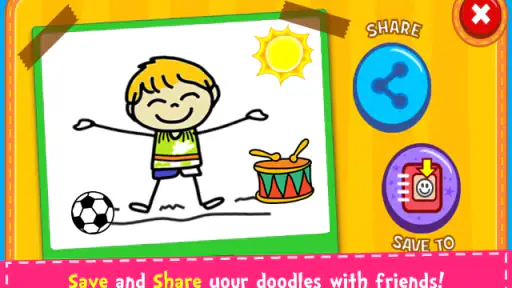
When starting over is genuinely the best option, I suggest taking a quick screenshot first if the child is proud of the result and the device allows it. That is a general device action rather than a special feature of the app, but it gives the child a sense that the effort was not lost. I would explain the process beforehand instead of waiting until tears begin after an accidental clear.
If the app closes or behaves strangely, I would close other demanding apps, reopen the board, and try a short test drawing. If the issue continues, restarting the device is a reasonable general troubleshooting step. I would avoid repeatedly tapping the same control, because that can make it harder to tell whether the problem is the app, the screen, or the child’s touch position.
It is also worth separating a temporary glitch from a design limitation. If a child wants to undo one tiny mark but the available action only removes more than expected, that is not necessarily a malfunction. It may simply mean the app is designed around broad, simple interactions. In that situation, the practical choice is to adapt the activity or move to a more advanced drawing app rather than spending time trying to force precision the tool was not built to provide.
When the app is not the cause of the frustration
Parents often assume a child is bored because an app is poor, but the surrounding situation can be the real issue. A tired child may reject drawing, a hungry child may want attention rather than a screen, and a child who has just finished a demanding activity may not have the patience to learn a new interface. Magic Board works best when the child has enough energy to explore without being pressured to produce a finished picture.
Touchscreen hardware can be another factor. An older display may register slow strokes unevenly, while a damaged screen can create gaps or unexpected marks. If the same touch problems appear in other drawing or writing apps, I would investigate the device rather than reinstalling this one. Testing with a clean finger and a different part of the screen can help identify whether the issue follows the app or the hardware.
Adults can unintentionally make the session harder by correcting every line. The app is more enjoyable when I let the child decide what the marks mean. Instead of asking why the house is floating or why the colors do not match, I might ask what is happening in the picture. That keeps the experience creative and makes the simple tool feel more open-ended.
The app is also not the best answer for every age. A preschool child may appreciate the immediate feedback, while an older child who wants to practice drawing technique will probably outgrow the limited chalkboard approach. For structured learning, a guided art app may be better. For detailed illustrations, a dedicated drawing program with more control is the stronger choice. For a child who mainly wants to decorate templates, a coloring app built around fill areas may be more suitable.
Compared with paper and crayons, the app is cleaner, quicker to reset, and easier to use in a confined space. Paper remains better for developing physical pencil control and for keeping a tangible record of the child’s work. Compared with a video, the board encourages the child to make choices and respond with their own hands, but it still requires an adult to provide ideas if the child needs direction.
Compared with a full digital art application, Magic Board has less depth but a gentler learning curve. I would choose it for spontaneous doodling, shared parent-child play, and short creative breaks. I would choose something else when the goal is technique, project management, detailed editing, or a finished image suitable for printing.
Ways to get more value from a very simple tool
One useful approach is to treat the board as a storytelling prompt. I might draw one simple object and ask the child to add what belongs around it. A sun can become a whole landscape, and a single line can become a path leading somewhere. This gives the session a narrative structure without requiring built-in lessons or complicated controls.
Another practical method is color limitation. Asking a child to use only two or three colors makes the activity feel like a challenge rather than an empty canvas. It also encourages planning: which color should be used for the sky, which for the main object, and which for details? When the board is cleared, the child can try the same scene with a different palette and compare the mood.
I also like using the app for collaborative drawing. One person can make the first mark, and the other must continue it without erasing. This works well between a parent and child because it changes the goal from producing a perfect picture to listening and responding visually. The limitation is that the app is not a shared online space; the collaboration happens around one device, which is actually helpful when the aim is face-to-face interaction.
For short sessions, I would set a clear endpoint such as one completed scene or three quick doodles. Without a boundary, a child may keep clearing and restarting without feeling satisfied. A small goal makes the freeform format easier to manage and lets the adult end the activity naturally instead of turning it into an argument about stopping screen time.
There is a quiet developmental benefit in the erase-and-redraw cycle. Children can test cause and effect, compare shapes, and practice making deliberate movements. I would not present this as a replacement for handwriting practice or formal art instruction, but it can be a low-pressure way to encourage visual thinking. The key is to talk about choices and ideas, not just whether the final image looks attractive.
Who should install it, and who should skip it
I think this app is a good fit for families wanting a free, uncomplicated creative activity that can be started quickly. It suits children who enjoy making marks without needing a fixed objective, and it is especially useful when paper supplies are unavailable or inconvenient. The everyone age classification also makes the concept easy to introduce in a family setting.
I would skip it if the main requirement is advanced drawing control. It is not the right pick for a child asking for layers, detailed brush customization, precision editing, or a guided curriculum. I would also look elsewhere if the child becomes frustrated by freeform activities and needs puzzles, instructions, or clear rewards to stay engaged.
Because it is an app rather than a physical board, adult supervision still matters. I would decide how the child should use the device before starting, remain nearby for the first session, and make sure the child knows which gesture or control ends the picture. Those small boundaries are more important than trying to turn a quick doodle into a long lesson.
The free price makes experimentation easy, and the broad install base shows that the concept is accessible to many families. Still, popularity does not remove the need to match the tool to the child. Its value comes from being immediate and forgiving, not from offering a large catalogue of content.
My practical verdict after using it
Magic Board - Doodle & Color succeeds because it keeps the invitation to create visible and uncomplicated. I would recommend it to a parent who wants a quick drawing activity for a young child, especially during travel, waiting time, or a calm break at home. The best results come when an adult supplies a small prompt and lets the child decide what the marks become.
I would approach it with realistic expectations. The chalkboard format cannot provide the precision of a serious art app, the physical benefits of paper, or the structure of a guided educational program. Its controls may also feel limiting once a child wants to edit individual details. Those are genuine trade-offs, but they are connected to the same simplicity that makes the app approachable.
For me, the deciding question is not whether it has enough tools. It is whether the child can open it and begin imagining within moments. When the answer is yes, the app earns its place as a handy creative backup. When the child needs lessons, technical control, or a permanent finished project, another option will serve better. Used for the right kind of short, shared activity, this free parenting app is a pleasant and practical choice from Orange Studios Games.


